
Free tool · No sign-up required
Free Invoice Generator
Create a professional, itemized invoice right here in your browser, then print it or save it as a PDF. Payment terms, per-line tax, and a clean layout that gets paid without a follow-up call.
Everything stays in your browser — nothing you type is sent to or stored on our servers.
Prefer invoicing from your phone? Get Revenuor for iPhone & iPad. Quoting before the work? Try the free estimate generator.
Pre-filled with example data — edit everything below.
Jump to preview ↓Preview
In the print dialog, choose "Save as PDF" as the destination to download the file.
INVOICE
- Issued:
- Due:
- Terms:
Bill to
| Description | Qty | Rate | Total |
|---|---|---|---|
|
Taxable |
Payment instructions
Notes
Created your invoice?
Revenuor keeps your clients, saved services, jobs, invoices, and follow-up together on iPhone and iPad — and shows you who still owes you money. And once it's paid, the job profit calculator shows what the job really earned.
Download on the App StoreHow to create a professional invoice
Add your details
Enter your business info and the customer being billed. If they're a company, the company name leads on the document.
List what you did
Add each part of the completed work as a line item with a quantity, unit, and rate — the same lines your estimate promised.
Set terms and tax
Pick payment terms (the due date fills in automatically), add your tax rate, and mark which lines are taxable.
Print or save the PDF
Check the live preview, then use "Print / Save as PDF" — choose "Save as PDF" in the dialog to download it.
What a professional invoice should include
- Your business name, contact details, and logo
- The customer's name — company first if you're billing a business
- A unique invoice number for your records
- The issue date and a clear due date
- Line items with quantities, units, rates, and totals
- Tax, applied only where it belongs
- Payment instructions — how and where to pay you
- One unmistakable total due
Invoice vs. estimate
An estimate proposes a price before the work; an invoice requests payment after the work is done. The cleanest workflow uses both: quote it, do it, bill it — with the same line items flowing from one document to the next. If you're still at the quoting stage, start with the free estimate generator.
Invoice numbering that stays sane
Use a simple sequential scheme — INV-1001, INV-1002 — and never reuse a number. Sequential numbers make your records easy to search, keep your accountant happy, and look established to commercial clients. Starting above 1000 is a common, harmless convention.
Issue date, due date, and payment terms
The issue date is when you send the invoice; the due date is when payment is expected. Payment terms connect the two: "Due on receipt" means pay now, "Net 14" and "Net 30" mean 14 or 30 days after the issue date. Residential customers usually expect due on receipt; commercial clients who batch their payments often need Net 14 or Net 30. Whatever you choose, print it on the invoice.
Writing payment instructions that get you paid
Don't make the customer guess. One or two plain sentences work: "Please pay by check to Northside Cleaning" or "Bank transfer to the account below, reference INV-1001." The invoice should answer how, where, and by when — leaving nothing to a follow-up call.
When to send the invoice
The day the work finishes — ideally before you leave. Invoices sent same-day get paid noticeably faster than invoices sent "when I get to the paperwork," and the job is still fresh in the customer's mind if they have questions.
When an invoice goes overdue
Send a short, friendly reminder the day after the due date — most late payments are forgetfulness, not refusal. Reference the invoice number, restate the amount and how to pay, and keep the tone matter-of-fact. The hard part is noticing an invoice is overdue at all, which is why the Revenuor app keeps overdue and awaiting-payment invoices on one follow-up screen.
A note on taxes and local rules
Sales tax and invoicing requirements differ by state, province, and country — some jurisdictions require specific fields on invoices. This generator applies your tax rate only to lines you mark taxable, but it can't know your local rules. When in doubt, check with a local tax professional.
Estimate, job, invoice — connected on your iPhone
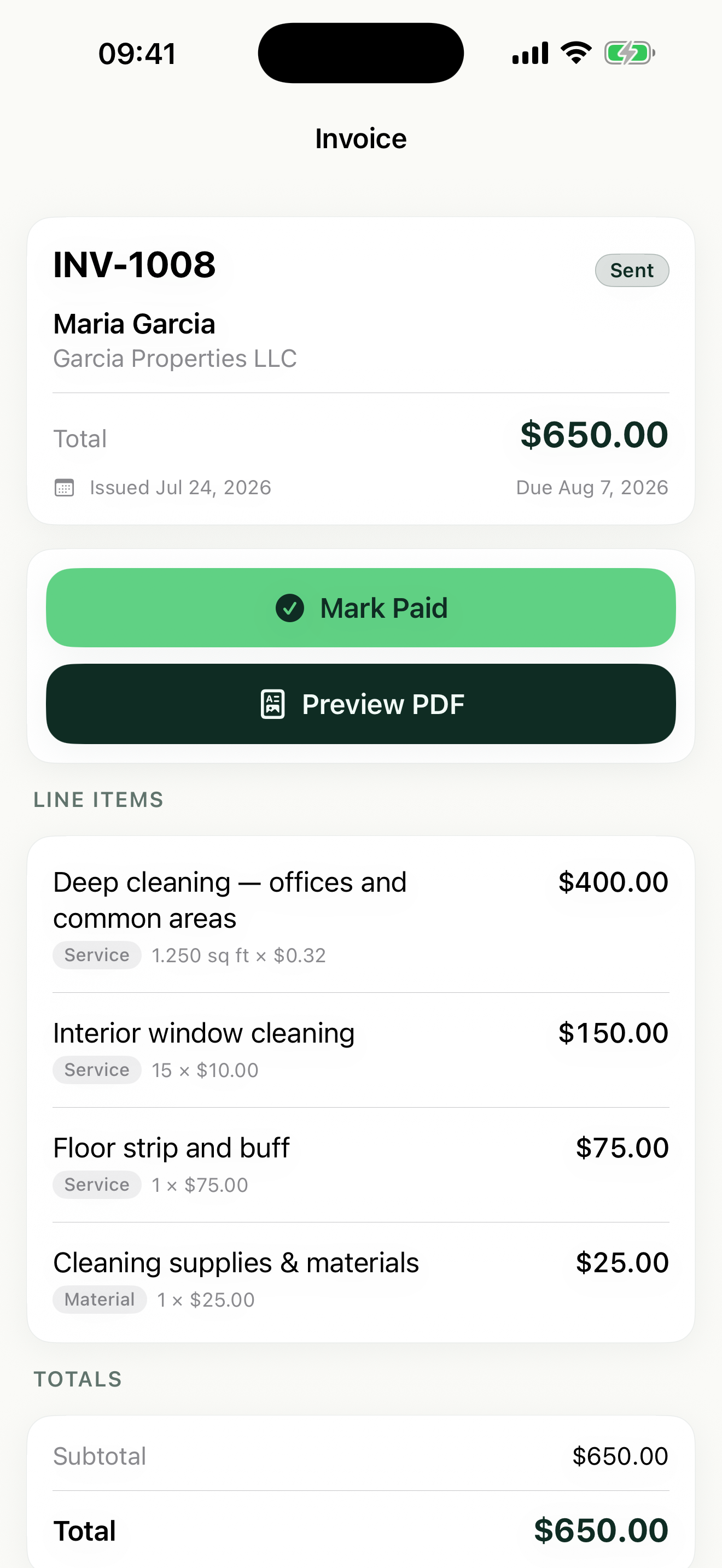
In Revenuor the estimate becomes the scheduled job, and the job becomes this invoice — same line items, no retyping. Then the follow-up screen watches the due date so you don't have to.
- Saved clients
- Saved line items
- Scheduled jobs
- Invoices from estimates or jobs
- Overdue & awaiting payment
- PDF preview and sharing
Frequently asked questions
Is the invoice generator free?
Yes. The generator is completely free, with no sign-up, no watermark, and no limit on how many invoices you create.
Do I need an account?
No. There is no account, no email capture, and no login. Open the page, fill in your invoice, and print or save it.
Is my invoice data stored?
No. Everything you type stays in your browser. Nothing is sent to or stored on our servers, and the data is gone when you leave the page.
Can I download or save a PDF?
Yes — through your browser's print dialog. Click "Print / Save as PDF" and choose "Save as PDF" as the destination to download the file.
Can I add sales tax?
Yes. Set your tax rate once, then mark each line item as taxable or non-taxable. Tax is calculated only on taxable lines.
Can I price by hour, square foot, each, or flat rate?
Yes. Each line item supports flat rate, each, hour, square foot, square yard, linear foot, day, or a custom unit you define.
What payment terms should I use?
Due on receipt gets you paid fastest and suits one-off residential work. Net 14 or Net 30 is common for commercial clients who process invoices in batches. Pick one and print it on every invoice.
What is the difference between an estimate and an invoice?
An estimate proposes a price before the work; an invoice requests payment after the work is done. If you need to quote first, use our free estimate generator, then invoice when the job is complete.
Is an invoice legally binding?
An invoice is a formal request for payment, and its enforceability depends on the underlying agreement and your local rules. Consult a professional for legal questions.
Can I use this on mobile?
Yes. The generator works on phones and tablets. For invoicing anywhere, the Revenuor app for iPhone and iPad keeps your clients and saved line items with you.